Move your OneNote notebooks to Apple Notes.
Sections become folders. To Dos become real checklists. Images, files and links between pages come along.
Requires macOS 11 Big Sur or later. One-time purchase.From the maker of  Obsidian to Notes
The same import engine, now for OneNote.
Built by the developer of Obsidian to Notes, used by more than 250 people to move their notes into Apple Notes.
Why Notebook to Notes
Your notebooks.
Just where you want them.
Keeps your notebooks
Every page, in the right folder.
Notebooks, section groups and sections become Apple Notes folders. Each page becomes a note with its formatting, tables, attachments and original dates.
No login
Download your notebooks from OneDrive, drop the .zip in the app and click Import. The app never asks for your Microsoft password.
100% offline
Your notes never leave your Mac.
The app reads OneNote files on your Mac. Nothing is uploaded, ever.
Native checklists
To Dos you can still tick.
OneNote To Do tags become real Apple Notes checklists, checked or not, nested ones included.
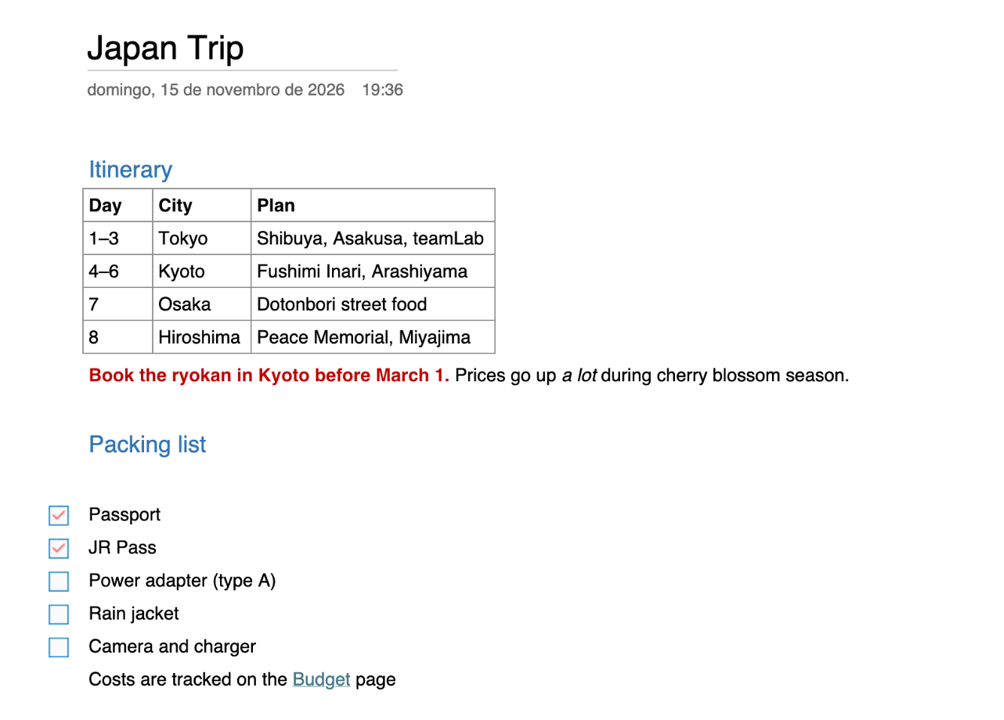
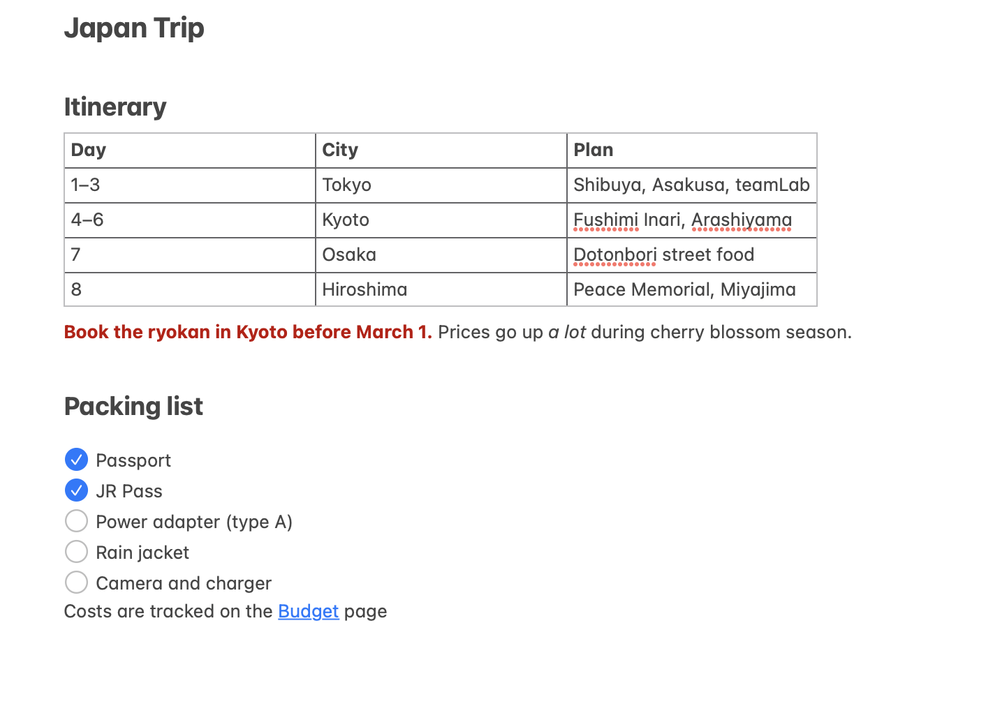
Same page. Different app.
A real page from OneNote, and the note the app created from it in Apple Notes.
 1
2
3
4
- TablesBecome native Apple Notes tables, cell by cell.
- Colors and formattingRed, bold and italic text stay exactly as you wrote them.
- To Do tagsBecome real checklists, with the same items already checked.
- Links between pages“Budget” still opens the Budget note, now in Apple Notes.
Three steps. No copy and paste.
OneNote keeps your notebooks in OneDrive. Download them once, and the rest happens on your Mac.
Step 1
Download from OneDrive
In OneDrive on the web, open My files, select the folder with your notebooks and click Download.
Step 2
Drop the .zip in the app
No need to unzip. Pick whole notebooks, single sections or just a few pages.
Step 3
Import to Apple Notes
Your notebooks show up in a OneNote Import folder, synced to your iPhone and iPad by iCloud.
What comes along.
Notebooks and sections
Folders for notebooks, section groups and sections.
Pages and dates
One note per page, with its original creation and edit dates.
Text formatting
Bold, italic, underline, strikethrough, superscript and text color.
Headings and lists
Bulleted and numbered lists, nested ones too.
To Do tags
Native Apple Notes checklists. Other tags become emoji (⭐, ❓).
Requires optional Full Disk Access. Understand whyTables
Apple Notes native tables, attachments in cells included.
Images, files and audio
PDFs, Word files and recordings, right where they were on the page.
Drawings and handwriting
Kept as images in place.
Links between pages
Become Apple Notes links to the imported note. Web links stay clickable.
Requires optional Full Disk Access. Understand why
Pay once. Use forever.
$19
One-time purchase. No subscription.
Buy Notebook to Notes- Universal macOS app
- Lifetime license
- Instant download
- Runs 100% offline
Questions? Answers.
Do I need OneNote installed on my Mac?
No. You download your notebooks from OneDrive in your browser and open the .zip in the app. OneNote does not need to be installed.
How do I get my notebooks out of OneNote?
Open OneDrive in your browser, go to My files, select the folder that has your notebooks (usually Documents) and click Download. OneDrive saves a .zip file. Drag it into Notebook to Notes, no need to unzip. The app also shows these steps. Read the full guide
Do I have to sign in to my Microsoft account in the app?
No. The app never asks for your Microsoft password and never connects to Microsoft. It only reads the file you downloaded.
What is converted, and what is not?
Kept: notebooks, section groups and sections (as folders), pages with their original dates, formatting and text color, headings, lists, tables, To Do tags (as native checklists), images, files, audio, drawings (as images) and links between pages.
Converted differently: equations become LaTeX text, blocks placed side by side are put in reading order, and subpages become regular notes in the same folder. Highlights and custom fonts are not kept.
Not supported: password-protected sections. Remove the password in OneNote before downloading.
After each import, the app tells you what was converted differently.
Why is Full Disk Access needed?
To turn links between pages into working Apple Notes links and To Do tags into native checklists, the app reads each new note’s ID from the Apple Notes database on your Mac. macOS only allows this with Full Disk Access. It is optional: without it, links become plain text and checklists become ⬜/✅. Everything stays on your Mac.
Is my data ever uploaded or shared?
Never. The app works 100% offline. Your notebooks are read and imported on your Mac and never leave it.
Does it work with work or school accounts?
The app is tested with notebooks from personal Microsoft accounts. Notebooks in OneDrive for work or school are downloaded the same way. If something doesn’t import as expected, write to us: you have 15 days for a full refund.
Can I import a .onepkg file exported from OneNote for Windows?
Not yet. Download your notebooks from OneDrive instead, as shown above.
What macOS version do I need?
macOS 11 (Big Sur) or later, on Apple silicon or Intel Macs.
Can I reuse the license if I update or reinstall the app?
Yes. Your license never expires and keeps working when you update or reinstall the app.
How many pages can I import?
There’s no limit. Import a single page or all your notebooks at once.
What happens after I purchase?
Right after checkout you get the download link for the universal macOS app (.dmg) and your personal license key to activate it.
Still have questions? Reach out at support@notebooktonotes.com
OneNote to Apple Notes.
No manual work.
Copying pages one by one is slow and loses your structure. Let the app do it for you.
Get the app